
Yin Yang Launcher: the complete feature guide
By Rolet, founder · Updated for version 5.11 · September 2026
Yin Yang Launcher is a minimalist Android launcher that helps you use your phone less. It replaces your home screen with a clean, simple one, and adds two extra spaces: My Space for widgets and everyday tools, and Mind Space for understanding your screen time and taking it back.
This page covers everything the app can do.
On this page
How the launcher is organized
Yin Yang is built around three spaces, one swipe apart:
| Swipe | Where you land | What it's for |
|---|---|---|
| Home | Your home screen | A clean start: clock, your chosen apps, your wallpaper |
| Swipe right | My Space | Widgets and tiles: notes, to-dos, weather, calendar, any Android widget |
| Swipe left | Mind Space | Your screen time, plus tools to use your phone more intentionally |
| Swipe up | App drawer | All your apps |
| Swipe down | Search | Find and open any app fast |
| Long press | Home settings | Theme, Focus Mode, Appearance, settings, Mind Space tools |
Home screen
You choose between two home layouts. You can switch any time.
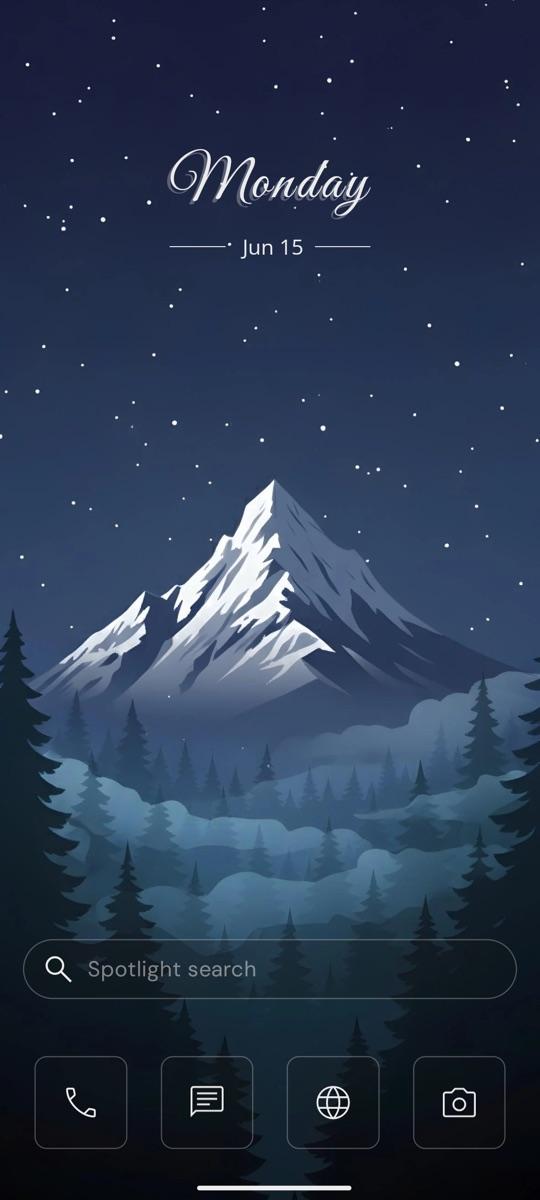
- Classic: a clock at the top, a dock of your key apps, and a search bar. You can move the clock, pick its style, and show your real app icons in the dock.
- Minimal: a clean list of app names with a clock. You control alignment (left, center, right) and where everything sits on the screen.
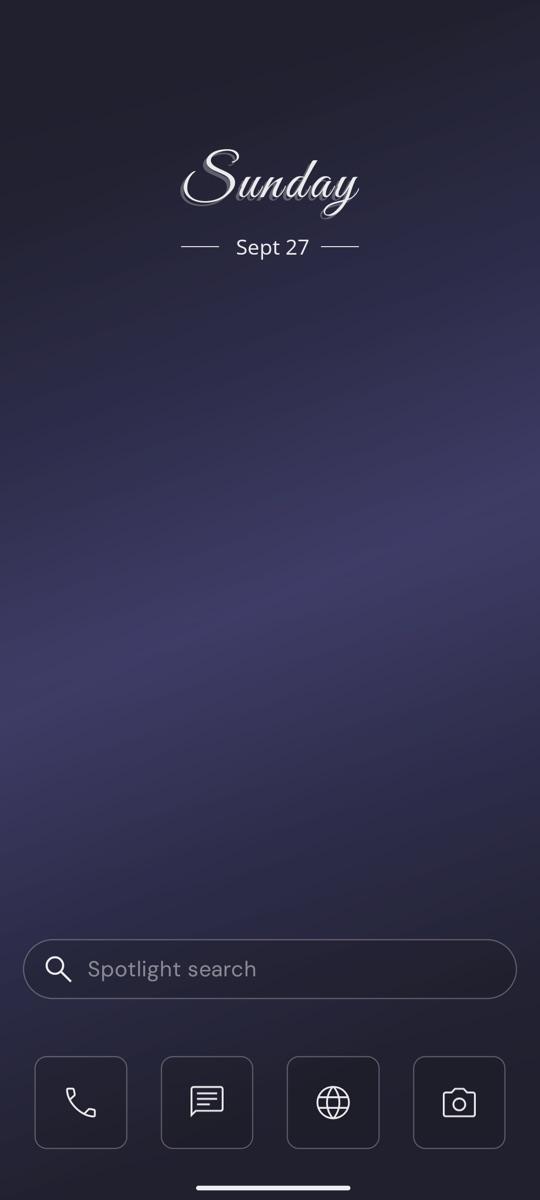
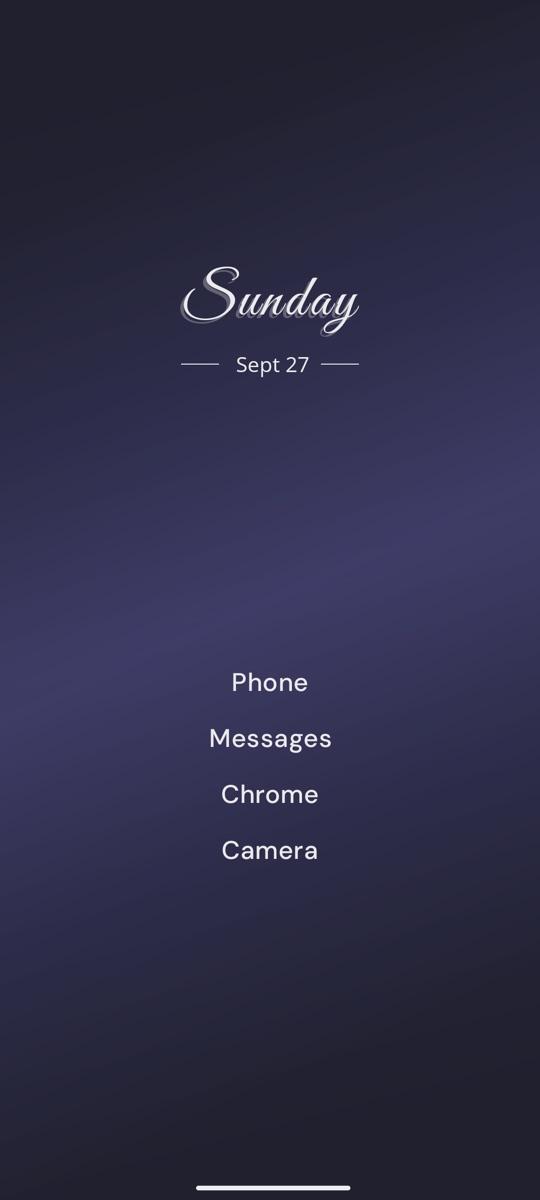
Make it yours: Appearance
Appearance is one editor for your whole look, with a live preview that updates as you tap. Long press the home screen and tap Appearance, or open it from Settings → Appearance.
It has six tools:
- Wallpaper: solid colours, gradients, artwork, your own photo, dynamic wallpapers that change through the day, and live wallpapers like jellyfish, koi and fireflies. Light and dark mode each keep their own wallpaper.
- Home: Classic or Minimal layout, and an editor for each.
- Clock: clock styles from simple to editorial.
- Fonts: font family and size.
- Icons: colour tints, the drawn Line and Ink styles, and any icon pack you've installed.
- Background: bordered or borderless cards, and background blur.
Theme: Light, Dark, or Auto, which switches on a schedule you set. Long press the home screen and tap Theme in the quick menu.
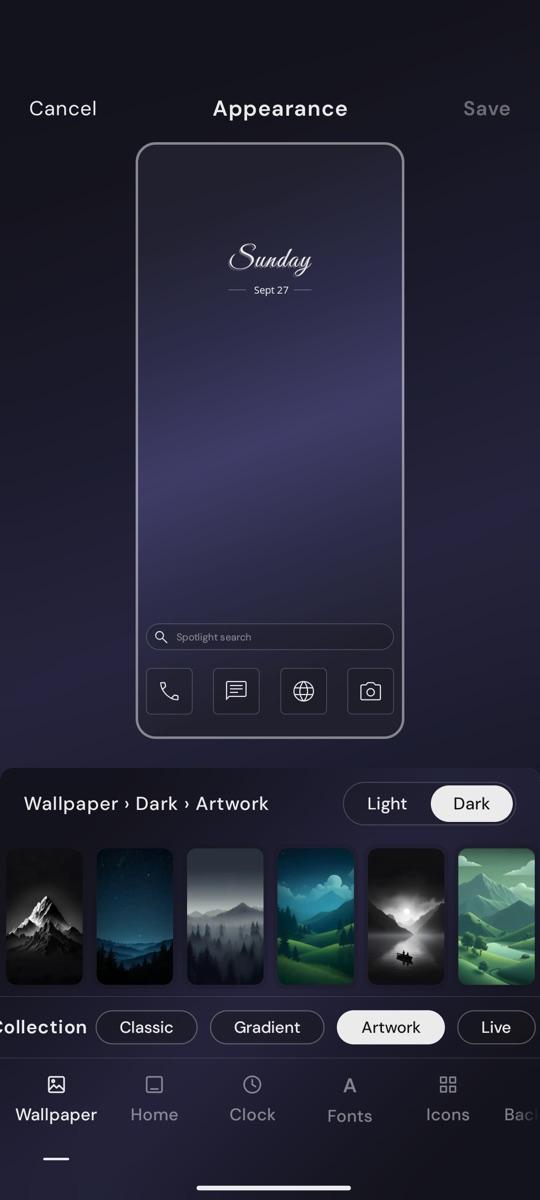
More in the guide: Customize your home screen.
App drawer and search
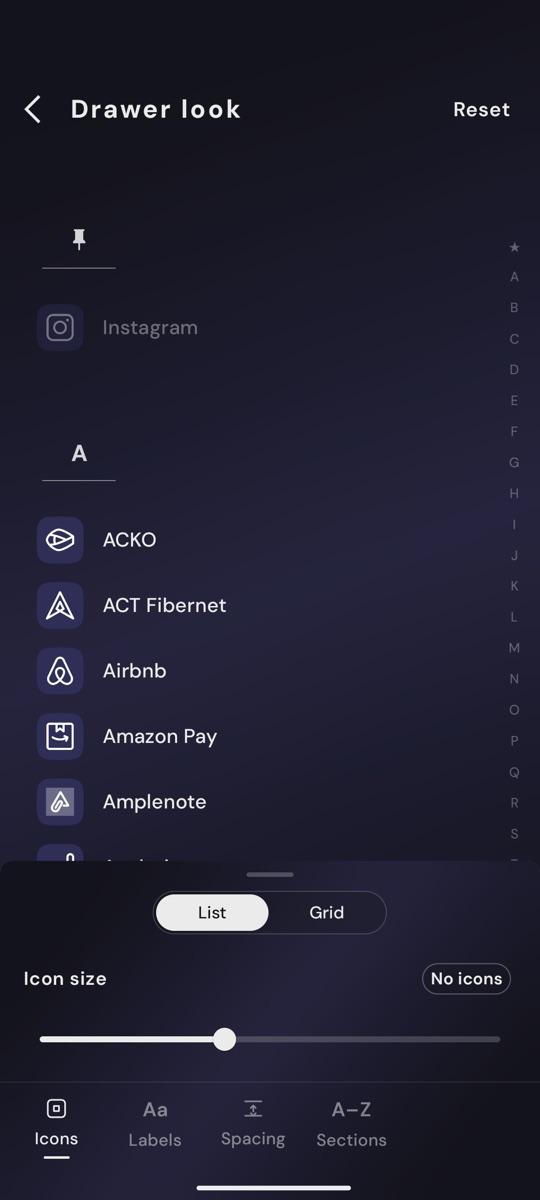
- Grid or list: show your apps as a grid of icons or as a list. Each layout remembers its own look: a list can hide icons for a text-only drawer, and a grid can hide labels for an icon-only one. In Drawer look, choose 3, 4 or 5 columns, icon and label size, row spacing, and A–Z sections.
- Recent apps at the top of the drawer (optional).
- Hide unused apps: apps you haven't opened in 30 days step out of view but stay searchable.
- Pin apps to the top, and work profile apps are supported.
- Search: "Open ready to type" puts the keyboard up instantly, and "Open single match" launches an app as soon as only one result matches.
My Space: widgets and tiles
Swipe right for My Space, a page for the tools you actually use.
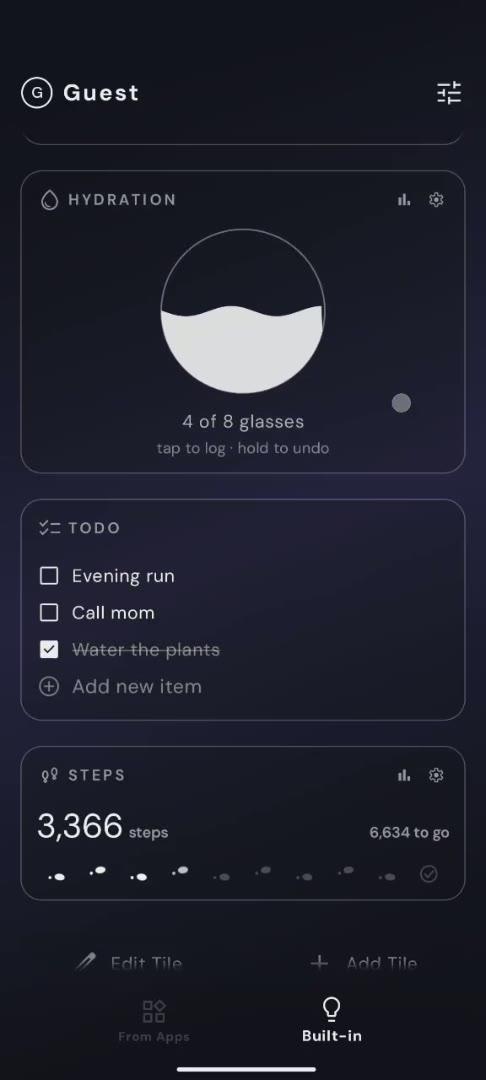
- Built-in tiles: Notes, To-dos, Weather (each tile can follow your location or a city you choose), Calendar, App Folders and Quote.
- Hydration, Steps, Music and Screen Time: log water, count steps on-device, control whatever's playing, and see today's screen time at a glance.
- Any Android widget: add widgets from your other apps, like Google Calendar or Spotify. Each one gets a clean frame, monochrome or colour, and a height of Compact, Small, Medium, Tall or a custom size.
Mind Space: screen time and focus tools
Swipe left for Mind Space. It has two parts.
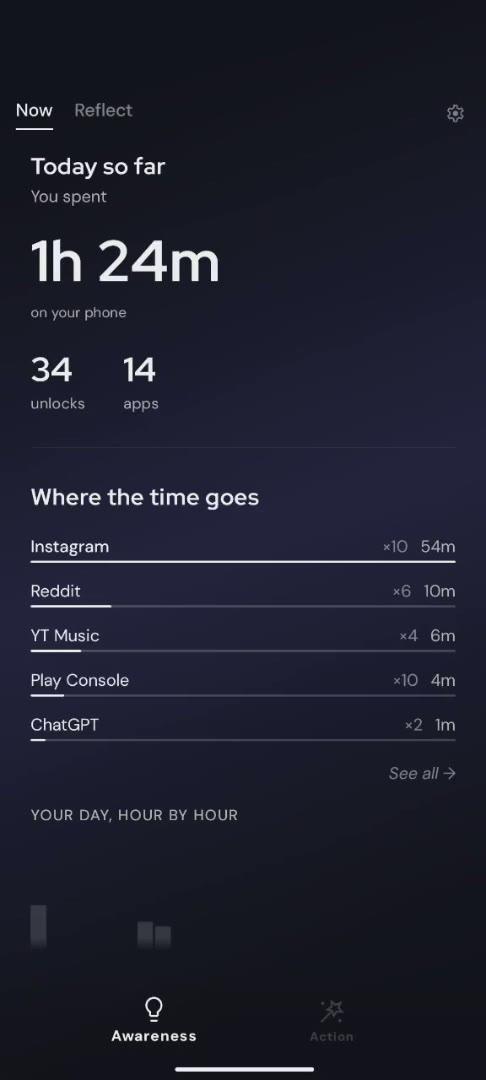
Screen time tracker (Awareness) shows your screen time, unlocks, most-used apps, and daily and weekly trends. You can mark work or study apps as Productive Apps so they don't count toward your screen time. Your usage data stays on your phone.
Tools give you four ways to take your time back, from lightest to heaviest:
| What you want | Tool | How it works | Time scale |
|---|---|---|---|
| Pause before opening an app | Mindful Pause | A short breathing moment before a chosen app opens, so opening it becomes a choice | Seconds |
| Set a daily time limit (app timer) | Mindful Timer | A daily time budget for an app, with a reminder when you reach it | Daily |
| Focus without distractions | Focus Mode | A focus session where only the apps you choose stay available. Start one now, or set a schedule that reminds you to begin | Minutes to hours |
| Block an app for days (app blocker) | Mindful Break | Step away from one app for 1, 3, 7 or 30 days. The app stays visible but opens to a reminder of your own reason | Days |
Mindful Pause comes with nine breathing guides. Focus Mode has a Soft version you can end any time, and a Strict version that holds you to the session until it ends.
Privacy
Yin Yang doesn't require an account or sign-in, and it doesn't collect your name or email. Which apps you use, and for how long, stays on your phone. Purchases are linked to your Google Play account, so they move with you to a new phone through Restore Purchases. Anonymous usage and crash reports help improve the app, and you can turn them off in Settings → Connect & support. Full details are in the privacy policy.
Questions?
Answers to common questions about setup, features and purchases are on the FAQ page.
Guides
- Screen time trackerSee where your time goes
- Pause before opening appsMindful Pause
- App timerA daily limit for any app · Mindful Timer
- Focus ModeBlock distractions while you work or study
- App blockerBlock a distracting app for days · Mindful Break
- Widgets on a minimalist home screenMy Space
- Customize your home screenWallpaper, layout, clock, fonts and icons · Appearance