
Customize your home screen
By Rolet, founder · Updated for version 5.11 · September 2026
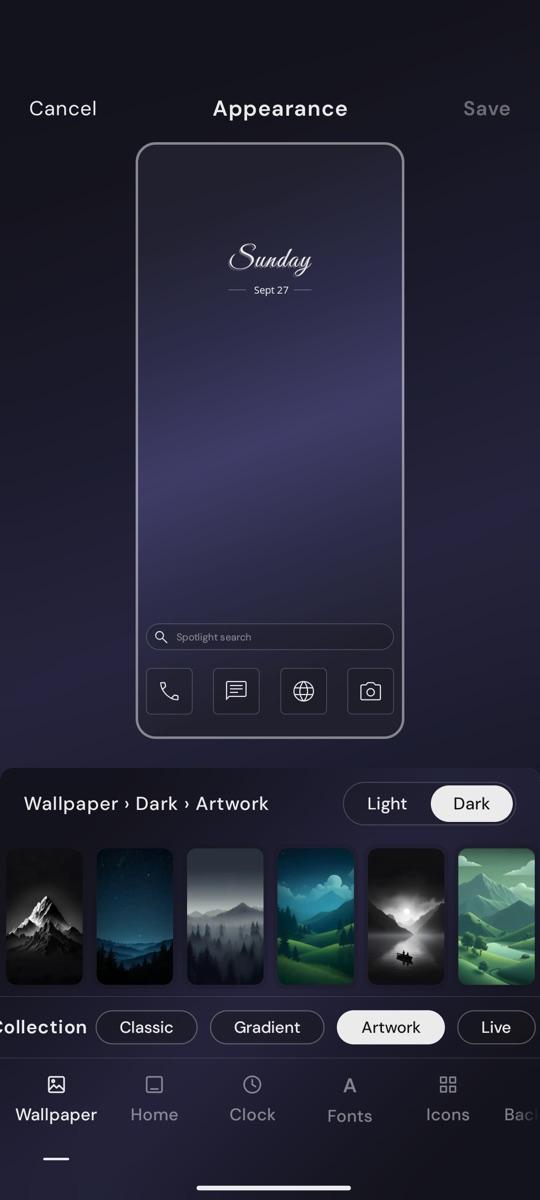
To customize your home screen in Yin Yang Launcher, long press the home screen and tap Appearance. One editor covers your wallpaper, home layout, clock, fonts, icons and background, with a live preview that updates as you tap. Nothing changes until you tap Save.
On this page
One editor for your whole look
Appearance puts the whole look on one screen. A large preview of your phone sits in the middle, and the tools run along the bottom:
Wallpaper · Home · Clock · Fonts · Icons · Background
Every pick shows up in the preview right away. Pick an icon style and the preview switches to your app drawer; pick a font and it shows My Space, so you see the change where it matters. Tap the preview to see it full screen. When you're happy, tap Save. Tap Cancel and nothing changes.
Light, dark or automatic
Yin Yang has a Light and a Dark theme, or Auto, which switches between them on a schedule you set (for example, light from 7 am and dark from 7 pm).
Where to switch: long press the home screen to open the quick menu, then tap Theme and choose Light, Dark or Auto. For Auto, set when light and dark start, then tap Activate.
Each theme keeps its own wallpaper
Light and dark mode each have their own wallpaper, so you can have a bright image by day and a dark one at night. Everything else, like your layout, clock, fonts and icons, is shared, so you only set it once.
In the Wallpaper tool, the Light / Dark switch picks which mode's wallpaper you're editing. A label above the preview shows which one it is. You can set both in one go.
Wallpaper
Choose from several collections:
- Classic and Gradient: solid colours and soft gradients.
- Artwork: illustrated scenes, like mountains, forests and lakes.
- Live: gently animated scenes for dark mode, like jellyfish, koi, fireflies, falling leaves and night snowfall.
- Dynamic: a landscape that changes with the time of day, from sunrise to night.
- Custom: your own photo. Adjust its blur, tint and contrast so your text stays easy to read.
When you save, you can set the wallpaper on your home screen only, or on your home and lock screen.
Home layout: Classic or Minimal
In the Home tool, choose your layout. Tap Edit to open its editor.
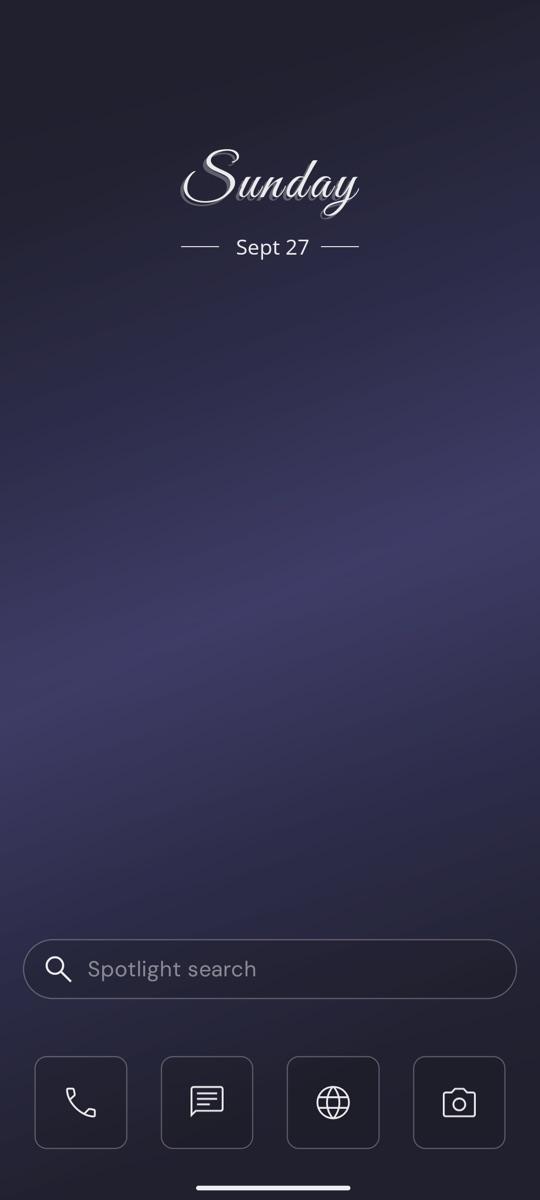
Classic has a clock at the top, a search bar and a dock of four apps.
- Dock: choose the apps in each slot, and show either simple line symbols or the apps' real icons in your icon style.
- Position: put the clock at the top, at eye level, or hide it. Show or hide the search bar.
- Clock: pick a clock style, and choose what opens when you tap the clock.
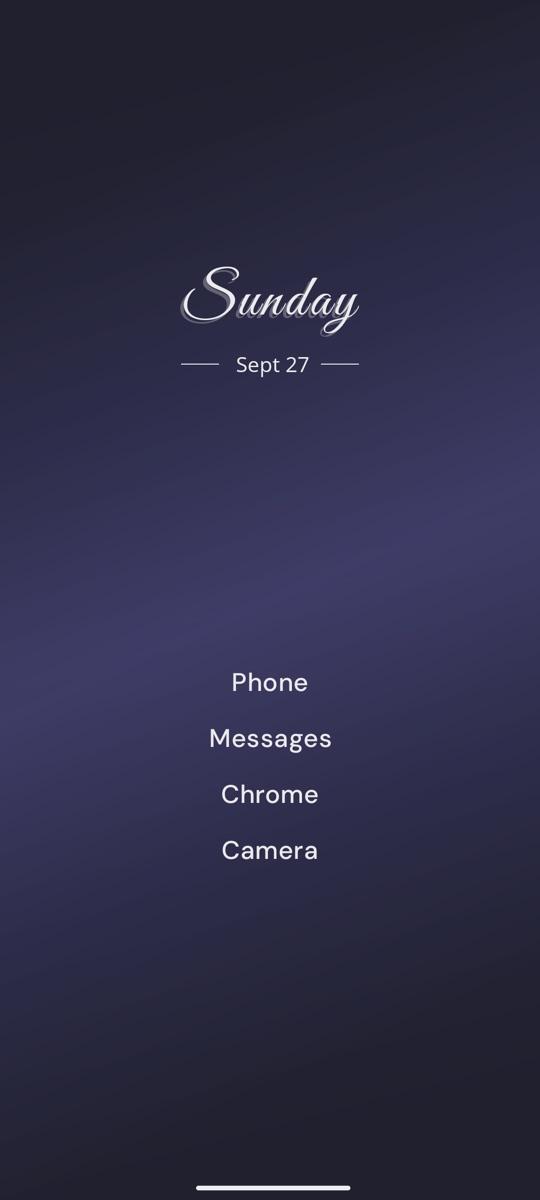
Minimal is a clock and a short list of app names, nothing else.
- Apps: add the apps you want, and drag to reorder them.
- Alignment: left, centre or right, and where the clock and list sit on the screen.
- Clocks: pick a clock style.
The Home tool also lets you show or hide Android's status bar.
Clock
Pick a clock style, from simple digits to large editorial styles, flip clocks and a greeting. Clocks show the time, date and battery, and use your theme's colours.
Fonts
Choose a font family, from clean sans-serifs like Inter and DM Sans to a serif and a monospace, and a size from S to XXL. The font applies across the launcher.
Icons
The Icons tool has three kinds of style.
- Tints recolour each app's own icon: Minimal (monochrome), Muted, Classic (full colour), Cool Tone, Pastel, Vintage and Invert.
- Our packs are Yin Yang's own drawn icons: Line (clean outlines in your theme colour) and Ink (the same outlines in each app's own colour). Apps without a drawing get an outline made from their own icon, so the set stays consistent.
- Installed packs: any icon pack you've installed from Google Play shows up here automatically. Apps the pack doesn't cover are drawn on the pack's own background shape, so nothing looks out of place.
For Line, Ink and icon packs you can also set an icon background: no shape, a circle or a squircle, in your theme colour or each app's own colour.
Your icon style shows everywhere: the app drawer, folders, search and, if you choose, the Classic dock.
Background
- Card style: Bordered or Borderless cards for My Space, search and menus.
- Background blur: let your wallpaper show softly through cards, search and menus, or use a plain tint instead.
Change your look
- Install Yin Yang Launcher from Google Play and set it as your home screen. You can switch back anytime.
- Long press the home screen and tap Appearance. You can also open it from Settings → Appearance.
- Tap a tool along the bottom: Wallpaper, Home, Clock, Fonts, Icons or Background.
- Pick an option and watch the preview update.
- In Wallpaper, use the Light / Dark switch to set a wallpaper for each mode.
- In Home, tap Edit to edit your layout's dock, clock position or app list.
- Tap Save.
To switch between light and dark, long press the home screen and tap Theme in the quick menu.
Tips
- Start with the wallpaper. It sets the mood, and the other choices are easier once you can see them against it.
- Pair a light and a dark wallpaper that feel related, like the same scene by day and by night, so switching themes feels natural.
- Use Auto if you like a light screen in the day and a dark one at night, without thinking about it.
- Try Minimal with Line icons in the drawer for the calmest setup: text on the home screen, simple outlines everywhere else.
- Using a photo? Turn up the blur or tint a little so the clock and app names stay readable.