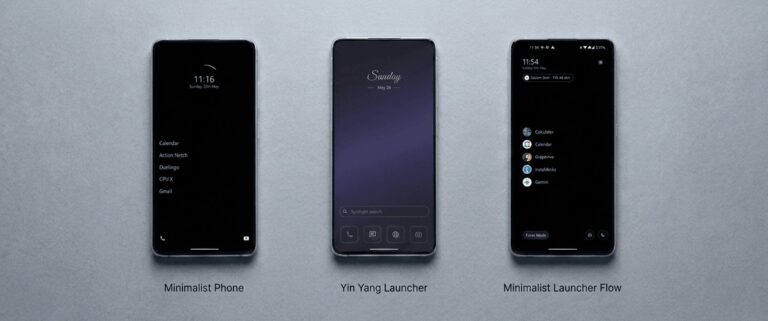
 Yin Yang Launcher
How to Set Up a Minimalist Home Screen on Android
Want a phone that's nicer to look at and easier to put down? Here's how to set up a minimalist Android home screen, step by step, with three setups to copy.
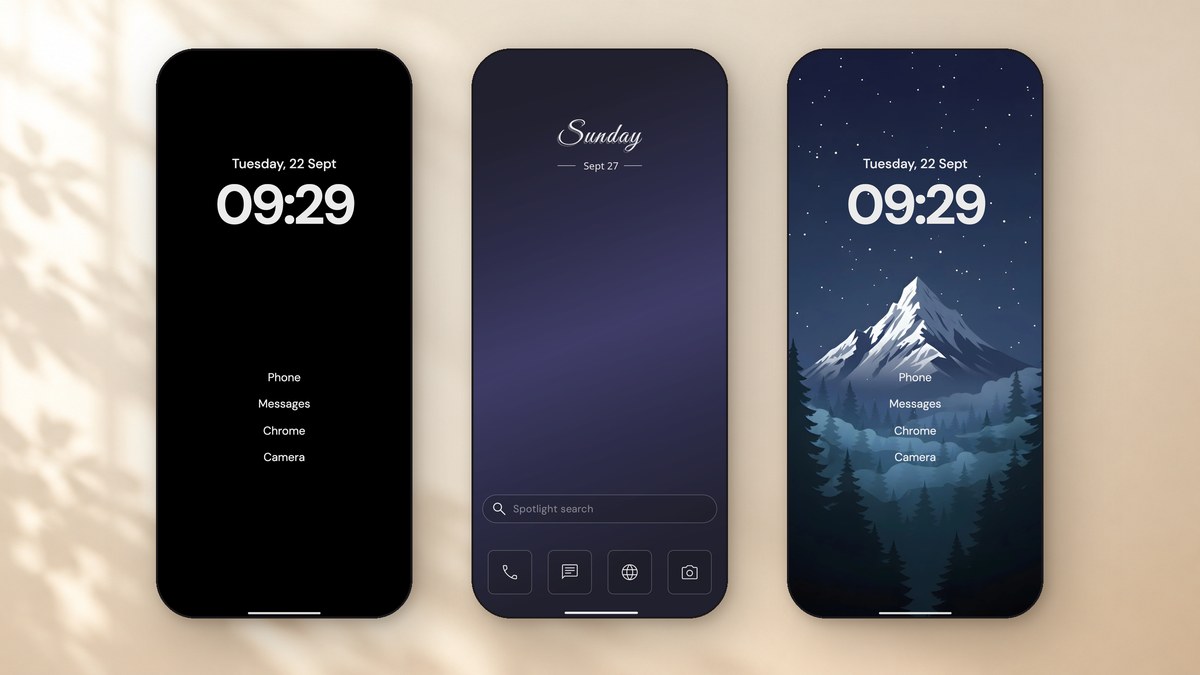
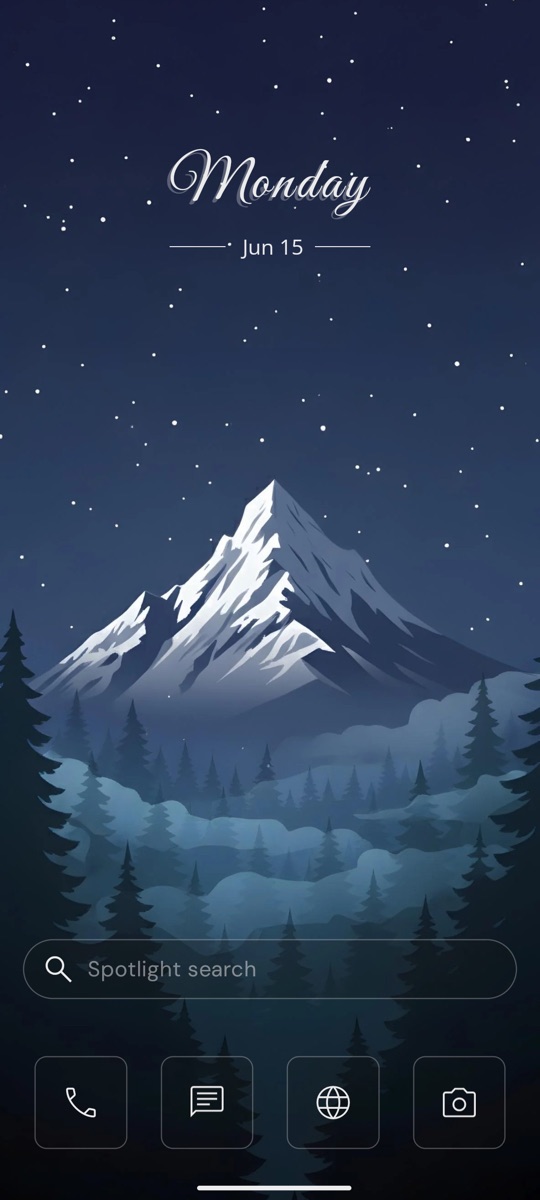
To set up a minimalist home screen on Android, keep a clock and the four or five apps you open every day, pick one wallpaper you like looking at, give your icons one matching style, and move everything else one swipe away. A minimalist launcher does all of this in one place. In Yin Yang Launcher, you long press the home screen, tap Appearance, and choose a layout (a dock of icons or a short list of app names), a clock, a font, an icon style and your own photo as wallpaper, with a live preview before you save.
What makes a home screen feel minimalist?
A home screen feels minimalist when there is little to look at and everything you see shares one style. Two things matter most: how many items sit on the screen, and whether they match. A dozen icons in a dozen colours feel busy; the same icons in one muted tint feel quiet. Everything else is still on the phone. It just isn’t the first thing you see when you pick it up.
Which apps belong on a minimalist home screen?
Keep the apps you open on purpose every day, and leave the rest one swipe away. For most people that’s calls, messages, the camera, maps and maybe a music app. A good test: if you’d open it even on your busiest day, it earns a spot.
Apps you open to fill a spare minute (social feeds, short videos, news, shopping) work better in the app drawer, where you reach them by searching. Nothing is deleted or blocked; opening them just becomes a choice rather than a reflex.
How do you set up a minimalist home screen in Yin Yang Launcher?
Long press the home screen, tap Appearance, and work through the tools along the bottom of the editor. A large preview shows your phone as you change it, and nothing changes until you tap Save. The full tour is in the customize your home screen guide.
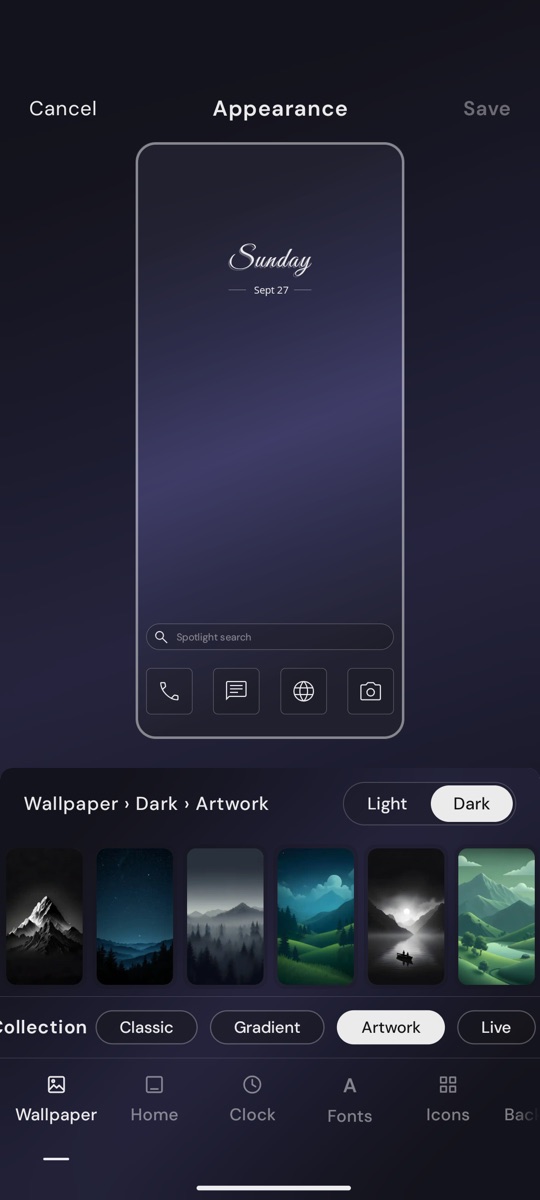
- Set Yin Yang Launcher as your home screen. Android asks when you first open it. You can switch back to your old launcher anytime.
- Open Appearance. Long press an empty spot on the home screen and tap Appearance. You can also find it in Settings → Appearance.
- Start with the wallpaper. Pick from solid colours, soft gradients, artwork, live or dynamic scenes, or tap Custom to use your own photo. Turn up the blur or tint a little so the clock and app names stay easy to read.
- Set a light and a dark wallpaper. Light and dark mode each keep their own wallpaper, so you can have a bright image by day and a darker one at night. Use the Light / Dark switch in the Wallpaper tool.
- Choose your layout. In the Home tool, pick Classic or Minimal, then tap Edit to choose the apps.
- Pick a clock and a font. The clock is the centre of a minimalist home screen, so choose one you like reading. Pick a font family and a size from S to XXL.
- Give your icons one style. In Icons, choose a tint such as Minimal (monochrome) or Muted, Yin Yang’s own Line outlines, or an icon pack you’ve installed.
- Tap Save.
To switch between light and dark, long press the home screen and tap Theme. Auto changes it on a schedule you set.
Classic or Minimal: which layout fits you?
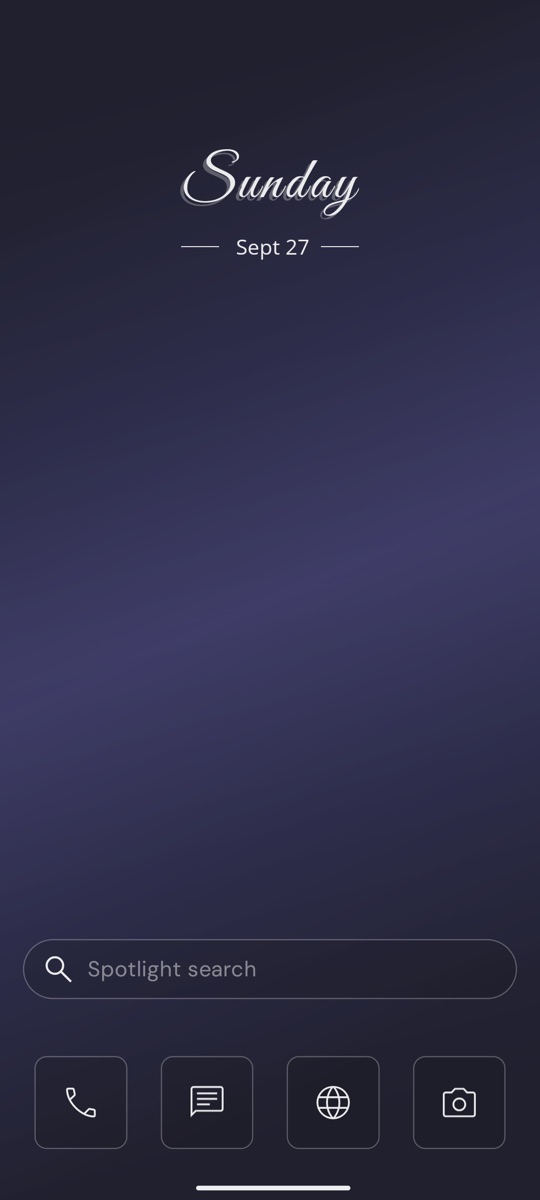
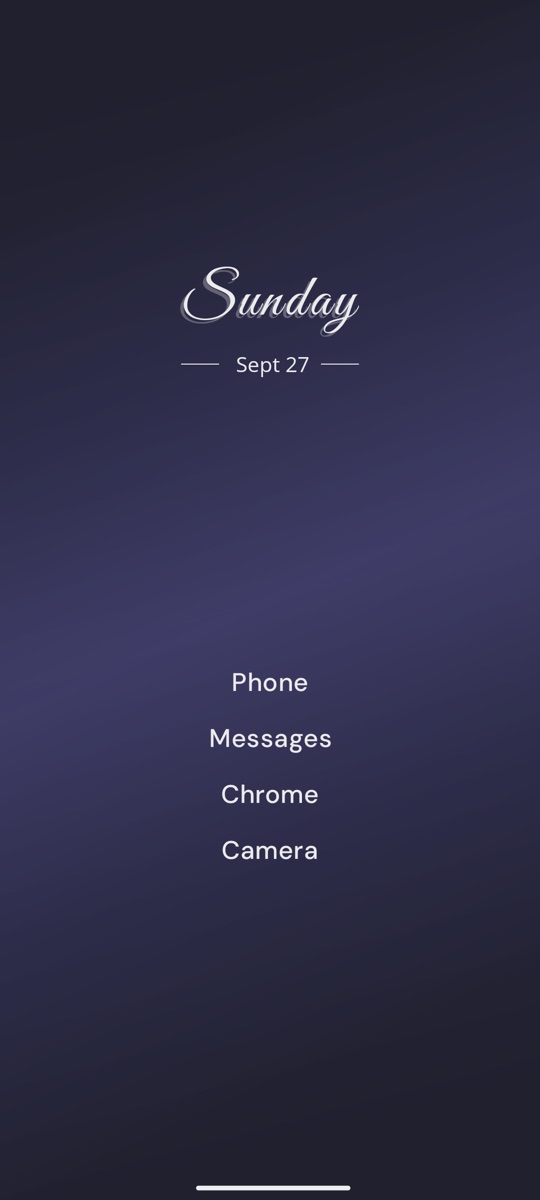
Choose Classic if you like a few icons and a search bar, and Minimal if you’d rather see only words. Both keep the home screen to a single, uncluttered page.
- Classic has a clock at the top, a search bar and a dock of four apps. You choose the apps in each slot, and whether the dock shows simple symbols or the apps’ real icons in your icon style.
- Minimal is a clock and a short list of app names, nothing else. You choose the apps, drag them into order, and align the clock and list left, centre or right.
Which icon style looks best on a minimalist home screen?
The calmest look comes from one style used everywhere, usually a monochrome or muted one. In Yin Yang Launcher your icon style applies to the app drawer, folders, search and, if you choose, the Classic dock.
- Tints recolour each app’s own icon: Minimal (monochrome), Muted, Classic (full colour), Cool Tone, Pastel, Vintage and Invert.
- Line turns icons into clean outlines in your theme colour, and Ink uses the same outlines in each app’s own colour.
- Installed icon packs show up automatically. Apps a pack doesn’t cover are drawn on the pack’s background shape, so nothing looks out of place.
Where do widgets go on a minimalist home screen?
Put them one swipe away instead of on the home screen. In Yin Yang Launcher that page is My Space: swipe right from home to see your calendar, weather, notes and to-dos, alongside Android widgets you already use, like Google Calendar, Keep or Spotify. The home screen stays clear. See the My Space widgets guide for the setup.
How do you keep the app drawer tidy too?
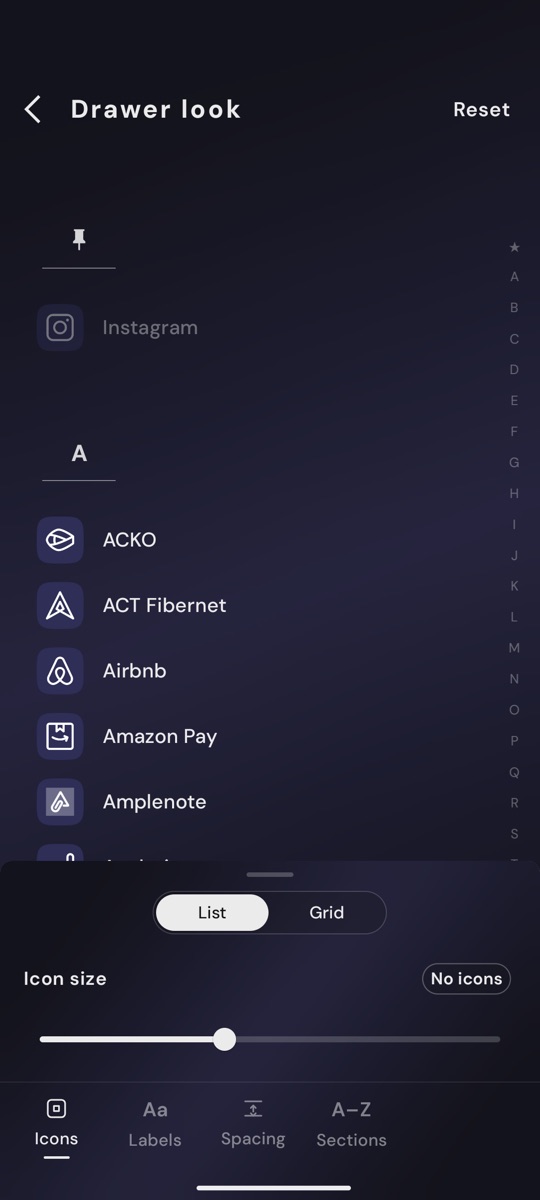
In the app drawer, go to Settings, then Look, to choose a list or a grid and hide icons or labels. A list without icons gives you a text-only drawer that matches the Minimal layout. You can also set columns, icon and label size, spacing and A to Z sections, with a live preview.
Three minimalist home screen ideas to copy
Pick one of these as a starting point, then adjust the details.
| Setup | Layout | Wallpaper | Icons | Good for |
|---|---|---|---|---|
| Text only | Minimal, centred | Solid dark colour or a soft gradient | Minimal (monochrome) in the drawer | The quietest possible screen |
| Your photo | Classic with real dock icons | Your own photo, a little blurred | Muted | Keeping a personal image without the clutter |
| Monochrome | Minimal, left-aligned | Black and white artwork | Line | A look that stays muted wherever you go in the phone |
Does a minimalist home screen help you use your phone less?
It removes some of the prompts to open apps, which is a good start, and you can add more support for the apps that still pull you in. A home screen with a few apps you chose gives you less to tap without thinking. For specific apps, Yin Yang Launcher’s Mindful Pause adds a short breathing pause, from 10 to 60 seconds, when you open an app you’ve chosen from the launcher, so you can decide whether you still want it. There’s more on that in how to reduce screen time with a mindful pause and how to make your phone less distracting.
Yin Yang is a minimalist launcher that helps you use your phone less, starting with a home screen you can make your own. If you’re comparing options first, see the best minimalist launchers for Android.
FAQ
Can I switch back to my old home screen?
Yes. In Yin Yang Launcher, open Launcher settings and tap Change launcher, then pick your previous launcher. Your old home screen is still there.
Can I use my own photo as the wallpaper?
Yes. In Appearance, open Wallpaper and tap Custom to choose a photo. You can adjust its blur, tint and contrast so the clock and app names stay readable.
Can light and dark mode have different wallpapers?
Yes. Each mode keeps its own wallpaper. Use the Light / Dark switch in the Wallpaper tool to set both, and turn on Auto in Theme to switch on a schedule.
Can I hide app icons in the app drawer?
Yes. In the app drawer, go to Settings, then Look, choose the list view and turn on No icons for a text-only drawer.
Does Yin Yang Launcher work with icon packs?
Yes. Icon packs you’ve installed from Google Play appear under Installed packs in the Icons tool, and apps the pack doesn’t cover are drawn to match it.