 Yin Yang Launcher
How to Change Your Launcher on Android (and Switch Back)
Change your Android launcher in Settings, switch back to your old home screen anytime, and fix a launcher that crashes or won't uninstall. Steps for Pixel, Samsung and other phones.
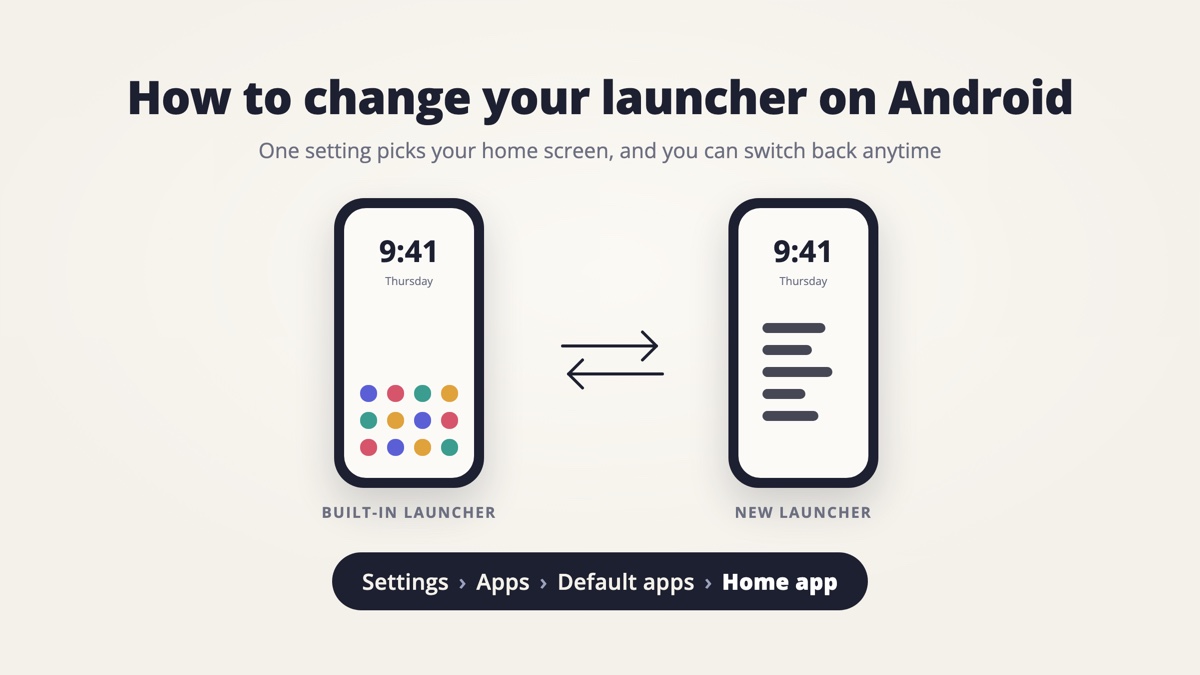
To change your launcher on Android, install the launcher you want, then open Settings › Apps › Default apps › Home app and pick it. On a Samsung Galaxy, the path is Settings › Apps › Choose default apps › Home app. To switch back, open the same screen and pick your old home app. Changing your launcher doesn’t uninstall your apps. A launcher only decides how your home screen and app drawer look, and you can change it as often as you like.
What is a launcher on Android?
A launcher on Android is the app that draws your home screen and app drawer. Android calls it the “Home app”, which is why the setting has that name. Every Android phone ships with one: Pixel phones use Pixel Launcher, Samsung Galaxy phones use One UI Home, and Motorola phones use Moto App Launcher. You can install other launchers from Google Play and keep several on the phone, but only one is your Home app at a time.
How do you change the launcher on a Google Pixel?
To change the launcher on a Google Pixel, open Settings › Apps › Default apps › Home app and choose the launcher you want.
- Install the new launcher from Google Play.
- Open Settings and tap Apps.
- Tap Default apps, then Home app.
- Pick the new launcher, then press the Home button or swipe up to see it.
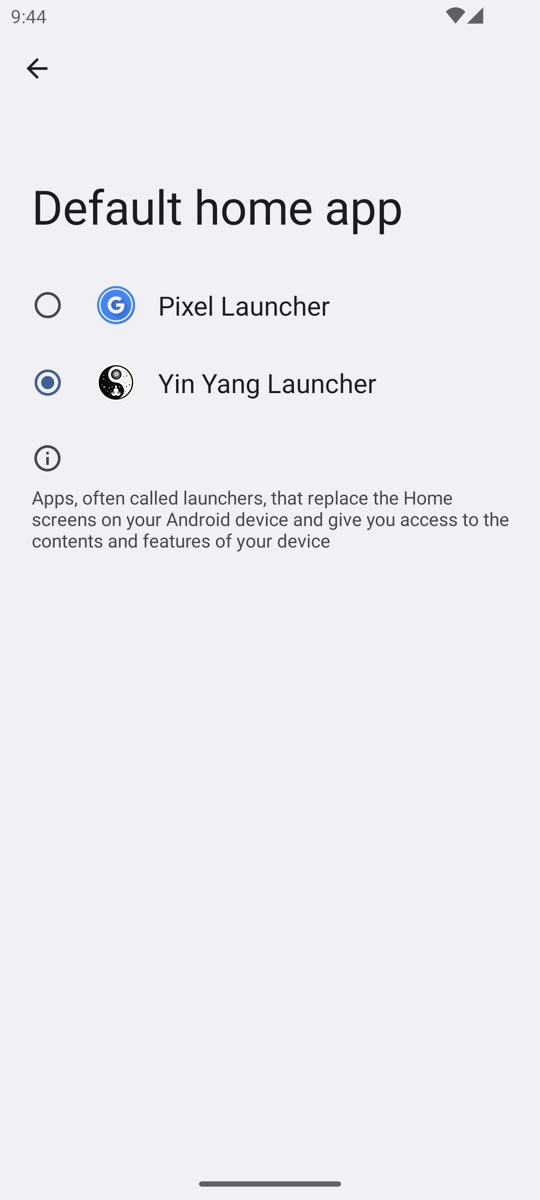
The screen that opens is called Default home app. We checked these steps on a Pixel emulator running Android 13 and on a Nothing Phone (1) running Android 15. Motorola’s help pages give the same path.
How do you change the launcher on a Samsung Galaxy?
To change the launcher on a Samsung Galaxy, open Settings › Apps › Choose default apps › Home app and pick the launcher you want.
- Install the new launcher from Google Play or the Galaxy Store.
- Open Settings and tap Apps.
- Tap Choose default apps, then Home app.
- Pick the new launcher.
To go back to Samsung’s own home screen, choose One UI Home on the same screen.
How do you switch back to your old launcher on Android?
To switch back to your old launcher on Android, open Settings › Apps › Default apps › Home app and pick the launcher you used before. On Samsung, the path is Settings › Apps › Choose default apps › Home app, and the built-in launcher is One UI Home. The change is instant, and you can switch as often as you like. Many people switch for a while to try a new home screen, then decide. One person who tried Yin Yang Launcher wrote in our exit survey in October 2026: “I am about to drive, and using maps, podcast launcher, and calls easier with my old launcher. But I’ll switch back to yours when I’m home. I appreciate the quick switch option.”
Will switching launchers delete your home screen layout or widgets?
Switching launchers doesn’t delete your home screen layout, because each Android launcher stores its own layout separately. Your old launcher keeps its icons, folders and widgets in its own data. When you switch back, its home screen is usually as you left it. A new launcher starts with its own layout instead. Your widgets don’t move across on their own, so you add them again in the new launcher. Some launchers offer to import your old layout during setup.
How do you uninstall a launcher on Android?
To remove a launcher on Android, first switch your Home app back to another launcher in Settings. Then uninstall the one you don’t want from Google Play or Settings › Apps. Android’s Settings often won’t let you uninstall the launcher that is currently your Home app, so the Uninstall button can look greyed out. If you remove the launcher that was your Home app, Android picks another launcher. It may also ask you to select a Home app the next time you press Home.
What if a launcher crashes or your screen goes blank?
If a launcher crashes or leaves a blank screen, restart your Android phone in Safe mode. Safe mode turns off apps you downloaded and loads the built-in launcher. From there, open Settings › Apps, uninstall the launcher that caused the problem, then restart normally.
- Pixel 6 and later: press and hold the Power and Volume Up buttons, touch and hold Power off or Restart, then tap OK.
- Samsung Galaxy: turn the phone off, turn it on, and hold Volume Down when the Samsung logo appears.
Google notes that Safe mode can remove some home screen widgets, so you may need to add them again afterwards.
How do you find the Home app setting on other Android phones?
On Xiaomi, OnePlus and other Android phones, search Settings for “launcher”, “home app” or “default apps” to find the screen. Menu names change between brands and Android versions, so the search bar is the fastest route. Some phones limit third-party launchers: Niagara Launcher’s help pages say Xiaomi’s HyperOS 2.0 and later don’t allow a third-party launcher as the default.
Trying a minimalist launcher
Yin Yang Launcher is a minimalist launcher for Android that replaces your home screen with a clean one that helps you use your phone less. Setup takes one screen: you pick a theme, a home layout and a wallpaper. Android then asks you to confirm Yin Yang as your Home app. Yin Yang’s Mindful Pause adds a short breathing pause before the apps you choose, and My Space keeps notes, to-dos and widgets one swipe away. See how to customize your home screen, or compare options in the best minimalist launchers for Android. If you switch, set up a minimalist home screen in a few minutes, and switch back from the Home app screen anytime.
FAQ
Will changing my launcher delete my apps?
No. Changing your launcher on Android only changes how your home screen and app drawer look. Your apps, photos and messages stay on the phone.
Can you have two launchers installed on Android?
Yes. You can install as many launchers as you like, but Android uses only one as your Home app at a time. Pick it in Settings › Apps › Default apps › Home app.
Can you uninstall the built-in launcher on Android?
No. Android doesn’t let you uninstall or disable the launcher that came with your phone, so it is always there to fall back on. You can only uninstall launchers you installed yourself.
What is Quickstep on Android?
Quickstep is part of Android’s own built-in launcher: the version that handles gesture navigation and the recent apps screen. It isn’t malware or an extra app. Some phones list it as “Quickstep” on the Home app screen, and choosing it brings back the phone’s built-in home screen.