 Yin Yang Launcher
How to Make Your Android Phone Grayscale (Black and White)
Turn your Android phone black and white with Color correction on Pixel or Samsung, set it for night only, add a one-tap shortcut, and see what research says grayscale changes.
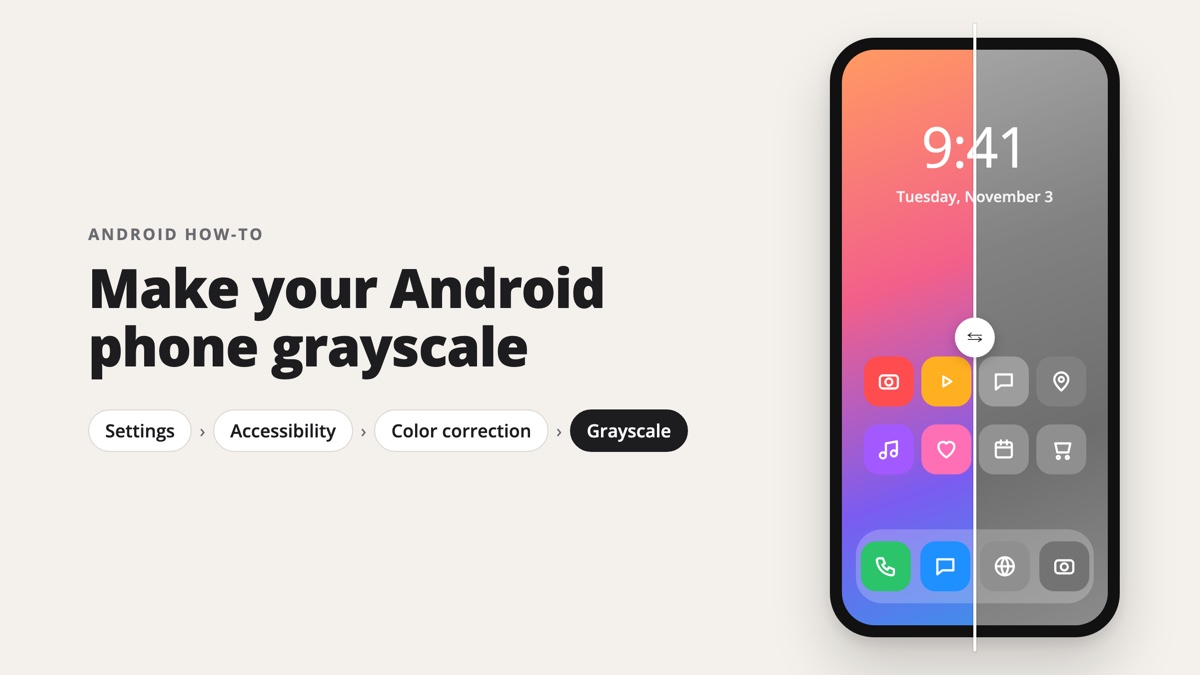
To make your Android phone grayscale (black and white), open Settings › Accessibility › Color and motion › Color correction. Turn on Use color correction and pick Grayscale. That is the path on Google Pixel and phones close to stock Android. On a Samsung Galaxy, go to Settings › Accessibility › Vision enhancements › Color correction and choose Grayscale. For grayscale only at night, use Bedtime mode on Pixel or Sleep mode on Samsung. Menu names vary between brands, so if you can’t find the setting, type “color correction” into the Settings search bar.
Which settings turn an Android phone grayscale?
Android’s grayscale setting lives in Color correction, an accessibility feature, and Bedtime or Sleep mode can switch it on at night. Here is where to find both on common phones.
| Phone | Grayscale all day | Grayscale at night only |
|---|---|---|
| Google Pixel | Settings › Accessibility › Color and motion › Color correction › Grayscale | Settings › Digital Wellbeing & parental controls › Bedtime mode › Customize › Screen options at bedtime |
| Samsung Galaxy | Settings › Accessibility › Vision enhancements › Color correction › Grayscale | Settings › Modes and Routines › Sleep |
| Other Android phones | Search Settings for “color correction” or “grayscale” | Search Settings for “bedtime” or “sleep” |
How do you turn on grayscale on a Google Pixel?
To turn on grayscale on a Google Pixel, open Settings › Accessibility › Color and motion › Color correction and choose Grayscale.
- Open Settings and tap Accessibility.
- Tap Color and motion, then Color correction.
- Turn on Use color correction.
- Choose Grayscale.
The screen turns black and white right away.
How do you turn on grayscale on a Samsung Galaxy?
To turn on grayscale on a Samsung Galaxy, open Settings › Accessibility › Vision enhancements › Color correction and choose Grayscale.
- Open Settings and tap Accessibility.
- Tap Vision enhancements. Older Galaxy software may call this menu Visibility enhancements.
- Tap Color correction and turn it on.
- Choose Grayscale.
What if your Android phone has no Color correction menu?
If an Android phone has no Color correction menu, search Settings for “grayscale”, “color correction” or “monochrome”. Xiaomi, OnePlus, Motorola and other brands place the setting under their own accessibility or display menus.
As a last resort, Developer options has a grayscale simulation:
- Open Settings › About phone and tap Build number seven times.
- Open Developer options, usually under Settings › System.
- Tap Simulate color space and choose Monochromacy.
Developer options holds settings meant for app developers, so change only this one.
How do you add a grayscale shortcut on Android?
To add a grayscale shortcut on Android, open the Color correction settings and turn on its shortcut. Then pick how to trigger it: Hold volume keys, Tap accessibility button or Quick Settings shortcut.
With Hold volume keys, pressing and holding both volume keys toggles grayscale. That helps when you want color back for a photo or a map.
How do you make your phone grayscale only at night?
Pixel’s Bedtime mode and Samsung’s Sleep mode can turn the screen grayscale on a schedule.
- Pixel: open Settings › Digital Wellbeing & parental controls › Bedtime mode. Set a schedule, tap Customize, then Screen options at bedtime, and turn on Grayscale.
- Samsung Galaxy: open Settings › Modes and Routines › Sleep and add grayscale to the mode’s actions.
Why did your Android phone suddenly turn black and white?
An Android phone that turns black and white on its own usually has Bedtime or Sleep mode running, Color correction switched on, or the accessibility shortcut triggered. The shortcut can start by accident when someone holds both volume keys.
How do you turn grayscale off on Android?
To turn grayscale off on Android, switch off whichever setting turned it on.
- Color correction: Settings › Accessibility › Color and motion (Pixel) or Vision enhancements (Samsung) › Color correction, then turn it off.
- Bedtime mode on Pixel: Settings › Digital Wellbeing & parental controls › Bedtime mode › Customize › Screen options at bedtime, then turn off Grayscale.
- Sleep mode on Samsung: Settings › Modes and Routines › Sleep › Other actions, remove grayscale and tap Done.
- Developer options: Simulate color space › Disabled.
Does grayscale help you use your phone less?
In a 2023 study, grayscale cut screen time by about 20 minutes a day, but people unlocked their phones just as often. The 84 participants tracked their phone use for one week in color and one week in grayscale (Dekker and Baumgartner, Mobile Media & Communication). In grayscale, they felt more in control of their phone use and reported less stress. Their sleep quality and productivity didn’t change. An earlier study linked grayscale to less anxiety and less problematic phone use (Holte, Giesen and Ferraro, Current Psychology, 2021).
The unlock result matters. Grayscale makes a feed less appealing once it’s open, but people still reached for the phone as often. For ways to change that reach, see how to use your phone less on Android.
How can you keep your home screen muted when color is back on?
Yin Yang Launcher keeps your home screen muted with color on, because its Minimal icon style shows every app icon in monochrome. Yin Yang is a minimalist launcher for Android that helps you use your phone less. A launcher is the app that draws your home screen, so the muted icons are there whenever you go back to it. Photos, maps and videos keep their color.
- Monochrome icons: Yin Yang’s Minimal tint turns each app’s own icon black and white. You can also switch to a text-only home layout. See how to customize your home screen.
- Monochrome widgets: Yin Yang’s My Space sits one swipe right from home. Widgets you add there are monochrome by default, and color is an option per widget. See the My Space widgets guide.
- A pause before chosen apps: Yin Yang’s Mindful Pause adds a 10 to 60 second breathing pause before the apps you pick open. Grayscale changes how a feed looks; Mindful Pause adds a moment before it opens.
Yin Yang Launcher doesn’t turn the whole screen gray, so keep Android’s Color correction for that and use both at once. For a full setup, see how to set up a minimalist home screen. To go further, read whether a dumb phone launcher can replace a dumb phone.
FAQ
Does grayscale save battery on Android?
Grayscale isn’t designed to save battery. OLED screens save power mainly on black pixels, and grayscale keeps gray pixels lit. Dark theme is the Android setting Google says can reduce power use on OLED screens.
Does grayscale help with eye strain?
Grayscale removes color, but gray and white pixels still give off blue light. For warmer light in the evening, use Night Light on a Pixel or Eye comfort shield on a Samsung Galaxy.
Can you make only some apps grayscale on Android?
Android’s built-in grayscale applies to the whole screen, not single apps. Yin Yang Launcher’s Minimal icon style makes app icons monochrome on the home screen, while the apps themselves open in color.