 Yin Yang Launcher
How to Use Your Phone Less on Android (Without Giving It Up)
Want to spend less time on your phone without giving it up? Keep the apps that do a job, quiet the rest, and put a pause and a limit on the few that take your evenings.
Updated October 2026
To use your phone less without giving it up, change what the phone offers you before you ask yourself to resist it. Keep only the apps you use every day on the home screen. Let notifications through from people, not apps. Add a short pause before the few apps that pull you in, and a daily limit on the one that takes your evenings. Calls, messages, maps and your bank stay where they are. Android’s Settings covers part of this. Yin Yang Launcher, a minimalist launcher that helps you use your phone less, puts all of it on your home screen.
What should you keep on your phone?
Keep every app that does a job for you, and pick out the two or three that take your time. Most people who want to use their phone less still need it for calls, messages, maps, banking, the camera, music and sign-in codes. Those apps rarely eat an evening. The time usually goes to a few apps with a feed: short videos, social media, news, sometimes a game.
Write those few apps down before you change anything. Every step below targets them and leaves the rest of the phone as useful as it is today. Not sure which apps they are? Digital Wellbeing in Android’s Settings shows your screen time per app for today and the past week.
Which phone settings make your phone less distracting?
Four built-in Android settings make a phone less distracting: app notifications, Do Not Disturb, grayscale and app timers. Menu names change between phones and Android versions. These are the names on recent Pixel and Samsung phones.
| Setting | What it does | Pixel | Samsung |
|---|---|---|---|
| App notifications | Turns off alerts app by app | Settings › Notifications › App notifications | Settings › Notifications › App notifications |
| Do Not Disturb | Silences alerts for the hours you set, with exceptions you choose | Settings › Modes › Do Not Disturb | Settings › Notifications › Do not disturb |
| Grayscale | Turns the screen black and white | Settings › Digital Wellbeing › Bedtime mode › Screen options | Settings › Accessibility › Visibility enhancements › Color correction › Grayscale |
| App timers | Closes an app for the rest of the day once its time is used | Settings › Digital Wellbeing › App timers | Settings › Digital Wellbeing and parental controls › App timers |
Start with notifications. Keep calls and messages from people, and turn off alerts that promote, remind or suggest. Each alert you remove is one less reason to pick up the phone for one thing and stay for another.
How do you clear your home screen so it stops pulling you in?
Keep only the apps you open every day on your home screen, and move the rest to the app drawer. The home screen is the first thing you see each time you pick up the phone. A feed app on the home screen opens with one tap. In the drawer, you reach apps by searching. That search gives you a second to decide whether you want the app.
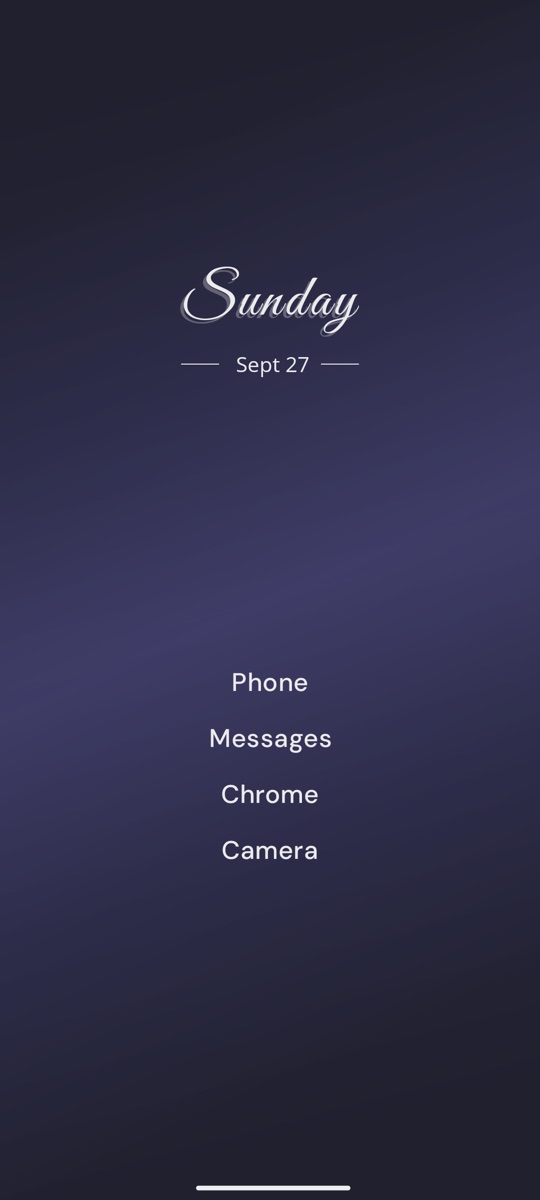
A simple test: if you’d keep an app on a basic phone, it can stay on the home screen. Feed apps go in the drawer. The calendar or weather can sit one swipe away instead of on the main screen. This guide to a minimalist home screen on Android walks through a full setup, with three layouts to copy.
How do you stop opening the same apps without thinking?
To stop opening an app without thinking, put a short pause in front of it and give it a daily limit. A pause of a few seconds turns a reflex into a choice. You see what you were about to open, then open it or put the phone down. A daily limit covers the other case, when one quick look turns into an evening.
Android’s built-in tools set limits but don’t add a pause before an app opens. App timers limit one app at a time, and Digital Wellbeing’s Focus mode pauses chosen apps for a stretch of time. Launchers and separate apps add the pause. The guide to pausing an app on Android compares the options.
How does a launcher help you use your phone less?
A launcher replaces your phone’s home screen, so its tools are there every time you pick up the phone. We build Yin Yang Launcher, a minimalist launcher for Android. Here is how it covers each step above.
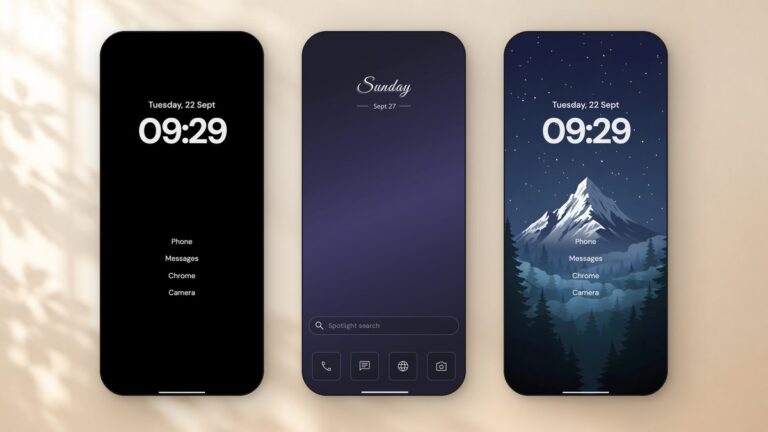
- A clean home screen. Yin Yang’s Minimal layout shows your apps as a plain text list, and Classic keeps icons and a dock. You decide what stays on the home screen (how to customize it).
- Your day one swipe away. Swipe right for My Space: notes, to-dos, calendar, weather and your Android widgets, so the home screen can stay clear.
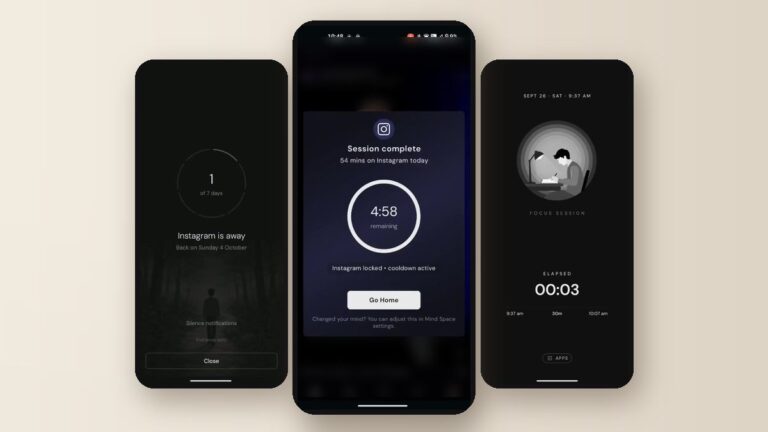
- A pause before chosen apps. Yin Yang’s Mindful Pause shows a breathing pause of 10 to 60 seconds before the apps you pick. Wait it out and the app opens, or close it and you’re back on the home screen.
- A daily limit across several apps. Yin Yang’s Mindful Timer gives a group of apps one daily budget. You pick a session length each time you open one, and an optional cooldown keeps that app closed for a while after each session.
- Focus sessions for study or work. Yin Yang’s Focus Mode hides every app except the ones you allow, for the time you set. Start a session when you sit down to work, or set a schedule that reminds you.
- A few days away from one app. Mindful Break keeps one app closed for 1, 3, 7 or 30 days, and shows your own note about why if you reach for it.
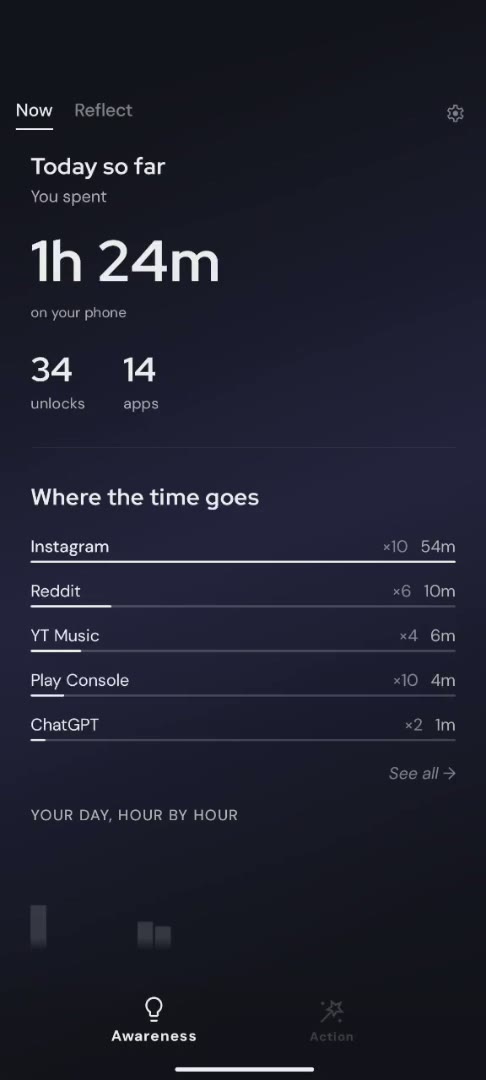
- A clear view of your screen time. Swipe left for Mind Space. The Awareness tab shows today’s screen time, unlocks and app opens, plus a 14-day trend.
How do you set up Yin Yang Launcher to use your phone less?
- Install Yin Yang Launcher from Google Play and set it as your home app. On Pixel: Settings › Apps › Default apps › Home app. On Samsung: Settings › Apps › Choose default apps › Home app. You can switch back the same way.
- Keep your daily apps on the home screen and leave the rest in the app drawer.
- Swipe left to Mind Space, open the Action tab, tap Mindful Pause and add the two or three apps you wrote down.
- If one app still takes your evenings, add it to a Mindful Timer group with a daily budget.
FAQ
How can I use my phone less without getting a dumb phone?
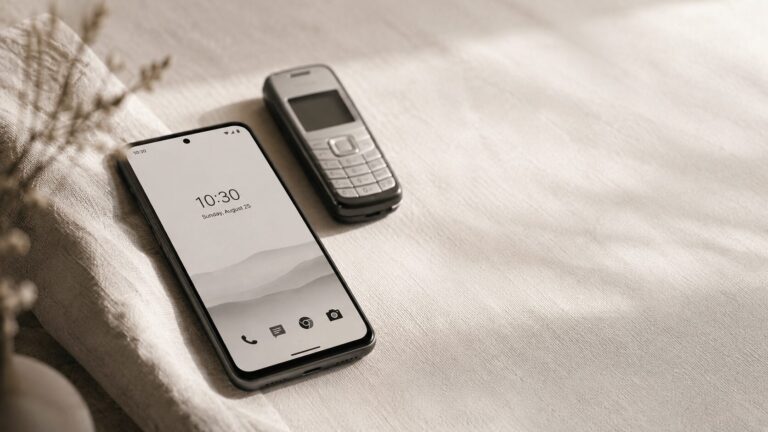
Keep the phone and change what it shows you. Put your daily apps on the home screen, allow notifications from people only, and add a pause or a limit to the few apps that take your time. Yin Yang Launcher does all three from the home screen. To go further, here is how to make an Android phone work like a simpler phone.
How do I make my phone less distracting?
Turn off notifications from apps and move feed apps off the home screen. Then switch on grayscale or Do Not Disturb for the hours you want quiet. All of these are built into Android and need no extra app.
Does grayscale help you use your phone less?
Grayscale turns the screen black and white, so photos, videos and red notification badges lose their color. Some people keep it on all day; others turn it on only at night through Bedtime mode. Try it for a week and compare your screen time before and after.
What app helps you use your phone less on Android?
Android’s Digital Wellbeing shows your screen time and sets app timers. Yin Yang Launcher adds a pause before chosen apps, one daily limit across a group of apps, focus sessions and a cleaner home screen. This roundup of minimalist launchers for Android compares other options.
How do I stop using my phone at night?
Turn on Bedtime mode in Digital Wellbeing, so the screen goes grayscale and Do Not Disturb starts at the time you choose. Charge the phone away from the bed if you can. In Yin Yang, a Focus Mode schedule can remind you to start a session. The session hides every app except the ones you allow, such as your alarm.